

By Alex · Updated May 10, 2026 AI spreadsheet agents promise to build, edit, and analyze workbooks directly inside Excel and Google Sheets. The right pick depends on where your spreadsheets live, how much editing you’ll trust an agent to do, and what your IT team will allow. We tested 17 tools.Documentation Index
Fetch the complete documentation index at: https://usefulai.com/llms.txt
Use this file to discover all available pages before exploring further.
Best AI Spreadsheet Agents
| # | Tool | Best For | Platform |
|---|---|---|---|
| 1 |  ChatGPT for Excel and Google Sheets ChatGPT for Excel and Google Sheets | Cross-platform spreadsheet work | Excel, Google Sheets |
| 2 |  Microsoft 365 Copilot in Excel Microsoft 365 Copilot in Excel | Governed Excel editing | Excel |
| 3 |  Gemini in Google Sheets Gemini in Google Sheets | Native Google Sheets help | Google Sheets |
| 4 |  Claude for Excel Claude for Excel | Complex Excel model review | Excel |
| 5 |  GPT for Work GPT for Work | Bulk row automation | Excel, Google Sheets |
| 6 |  Shortcut Shortcut | Finance model editing | Excel, Google Sheets |
| 7 |  Coefficient Sheets Assistant Coefficient Sheets Assistant | Connected Sheets reporting | Google Sheets |
1. ChatGPT for Excel and Google Sheets: Best for cross-platform spreadsheet work
What We Like
Works in both Excel and Google Sheets. Most assistants force you to pick a side. ChatGPT doesn’t - it covers Excel and Sheets. Fast enough for interactive analysis. Spreadsheet work happens in loops: ask, inspect, revise, repeat. ChatGPT moves quickly through Excel tasks so iteration doesn’t stall. Speed matters more than it sounds.What We Don’t Like
Less polished than Claude for presentation-heavy Excel. When layout, charts, and finance-model presentation matter, Claude’s output looks more refined. If you ship models to clients or executives, you’ll notice the difference within a few outputs. Use Claude for Excel when polish is the deliverable. Spreadsheet chats sit apart from regular ChatGPT. No shared memory or history with your main ChatGPT. If you’ve trained yours on work context and expect that to carry over, you won’t get it in spreadsheets.Pricing
| Plan | Price | What’s Included |
|---|---|---|
| Free | $0 | Spreadsheet agent in Excel and Sheets, limited usage |
| Go | $8/mo | Limited spreadsheet-agent usage |
| Plus | $20/mo | Agent subject to plan usage limits |
| Pro | $100/mo or $200/mo | Agent subject to plan usage limits |
| Business | $20/seat/mo annual or $25/seat/mo monthly | Free preview through June 2, 2026 |
| Enterprise / Edu | Custom | Free preview through June 2, 2026 |
Platform Availability
Excel (Web, Windows, Mac), Google Sheets. Installed from the Microsoft or Google Workspace marketplace.Who It’s For (and Who Should Skip It)
Use this if your work splits across Excel and Google Sheets, or you want a general assistant before paying for a specialist. Skip it for polished finance presentation (Claude for Excel) or bulk row automation (GPT for Work).2. Microsoft 365 Copilot in Excel: Best for governed Excel editing
What We Like
Native Microsoft 365 governance. For most enterprises, the “approved” AI is wired into existing identity, admin controls, and compliance. Copilot sits inside that stack - often more important than feature-by-feature comparisons against third-party add-ins. Real workbook editing, not just formula help. Copilot plans changes, builds and edits workbooks, and handles tables, charts, PivotTables, and formulas. Previously branded as Agent Mode; now called Editing with Copilot. Model picker and governed sources. Eligible commercial plans get a model picker (OpenAI and Anthropic) plus controls for web, work, and federated source context. Useful when you need to connect AI spreadsheet work to approved enterprise data without leaving the Microsoft stack.What We Don’t Like
Slower and more constrained at the top end. Advanced Excel users may find Copilot needs more hand-holding than Claude or ChatGPT. If you push complex models hard, test it on your own workbooks before standardizing.Pricing
| Plan | Price | What’s Included |
|---|---|---|
| Microsoft 365 Copilot Chat | Included for eligible Microsoft 365 plans | Web-grounded chat, select app access, metered custom agents |
| Copilot Business (annual promo) | $18/user/mo or $216/yr | Promo through June 30, 2026; up to 300 users; separate Microsoft 365 plan required |
| Copilot Business (monthly) | $25.20/user/mo | Monthly commitment; up to 300 users |
| Copilot Enterprise | $30/user/mo or $360/yr | Excel and full Microsoft 365 app access; separate Microsoft 365 plan required |
| Consumer (Personal / Family / Premium) | Eligibility varies | Editing in Excel requires AI credits, Microsoft 365 Premium, or eligible commercial Copilot |
Platform Availability
Excel (Web, Windows, Mac). Editing with Copilot only works with the currently open workbook.Who It’s For (and Who Should Skip It)
Use this if you’re on Microsoft 365, work in a regulated environment, or prefer native Excel deployment over third-party add-ins. Skip it for Google Sheets (Gemini), bulk row automation (GPT for Work), or the strongest Excel power-use experience (Claude for Excel).3. Gemini in Google Sheets: Best for native Google Sheets help
What We Like
Native to Google Sheets, no add-in required. Gemini ships inside Workspace - nothing to vet, install, or pay for separately. The lowest-friction AI spreadsheet experience on offer for Workspace customers. Covers the common Sheets actions. Formulas, tables, charts, pivots, sorting, filtering, dropdowns, and fill workflows are all documented and usable. Handles most first-month spreadsheet work without a learning curve. Workspace context improves routine work. Gemini can draw on Drive files, email, and web-grounded fill where eligible. If your spreadsheet work depends on surrounding Workspace material (briefs, meeting notes, source docs), this matters more than it looks on paper.What We Don’t Like
It is not an Excel assistant. Gemini wants native Google Sheets files. Excel.xlsx files need to be converted to Sheets first, which makes Gemini the wrong default for Excel-first teams. If your spreadsheets live in Excel, start with Copilot, Claude for Excel, or ChatGPT instead.
Pricing
| Plan | Price | What’s Included |
|---|---|---|
| Workspace Business Starter | $5.60/user/mo intro, $7/user/mo standard | Gemini in Sheets not included on this tier |
| Workspace Business Standard | $7/user/mo intro, $14/user/mo standard | Gemini in Sheets, Docs, Meet, Gmail |
| Workspace Business Plus | $11/user/mo intro, $22/user/mo standard | Standard features plus more storage and security |
| Workspace Enterprise | Custom | Full Workspace and Gemini features |
| Google AI Pro / Ultra (personal) | From $7.99/mo | Personal-account Gemini in Docs and Sheets |
Platform Availability
Google Sheets (Web). Excel files supported only after conversion to Google Sheets format.Who It’s For (and Who Should Skip It)
Use this if you live in Google Workspace and want built-in Sheets help without an add-in. Skip it for Excel work (Copilot or Claude for Excel), complex finance models (Claude), or bulk row automation (GPT for Work).4. Claude for Excel: Best for complex Excel model review
What We Like
Workbook structure awareness. Claude reads complex Excel files, follows formulas and references, and gives cell-level citations. That’s exactly the kind of help you need when picking up someone else’s model and trying to figure out how it works before you touch anything. Polished Excel output. Side-by-side comparisons consistently flag Claude as more refined than ChatGPT and Copilot in presentation. For client-facing or executive analysis, polish often matters as much as raw accuracy. Built for finance model review. Claude is strongest when you need to trace assumptions, debug formulas, review DCF logic, or update a model without losing the thread. Pick it when traceable reasoning matters more than bulk automation.What We Don’t Like
No Google Sheets product. Claude for Excel does what its name says. If you work across both platforms, you’ll need two tools - ChatGPT or GPT for Work cover both with one install.Pricing
| Plan | Price | What’s Included |
|---|---|---|
| Free | $0 | Claude for Excel not available on Free |
| Pro | $17/mo annual or $20/mo monthly | Claude for Excel access, standard usage limits |
| Max | From $100/mo | 5x or 20x Pro usage |
| Team Standard | $20/seat/mo annual or $25/seat/mo monthly | 5 to 150 users; includes Claude for Microsoft 365 |
| Team Premium | $100/seat/mo annual or $125/seat/mo monthly | 5x more usage than Standard seats |
| Enterprise | $20/seat plus usage at API rates | SSO, custom deployment, third-party platform support |
Platform Availability
Excel (Web, Windows, Mac, iPad). Requires Microsoft 365 subscription; older perpetual Excel versions (2016, 2019) not supported.Who It’s For (and Who Should Skip It)
Use this if you work in finance or consulting on multi-tab Excel models. Skip it for Google Sheets (Gemini), bulk row processing (GPT for Work), or broad cross-platform use (ChatGPT).5. GPT for Work: Best for bulk row automation
What We Like
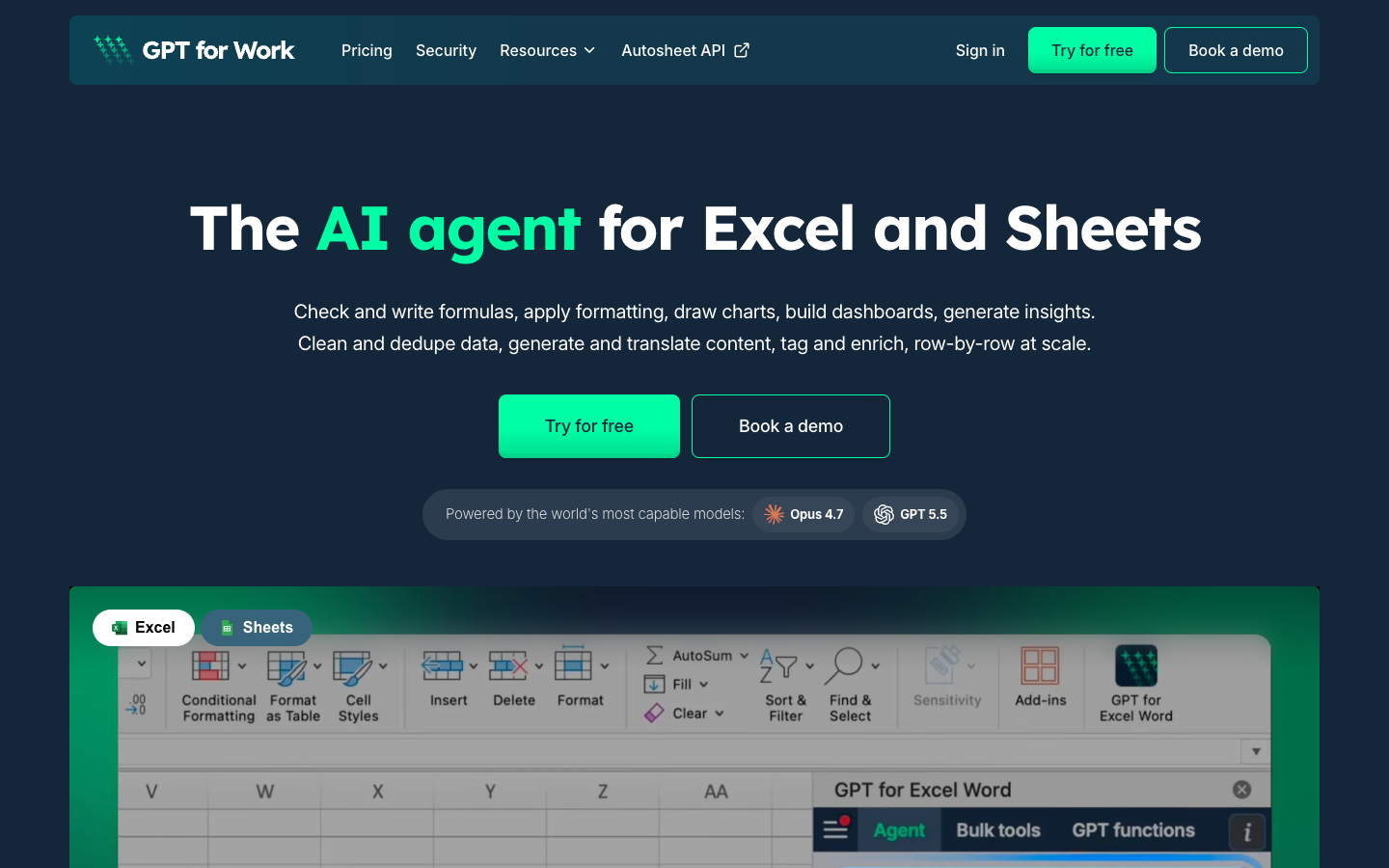
Best bulk row automation lane. When the spreadsheet is the production surface (SEO content, lead enrichment, classification, translation, cleanup), GPT for Work is built around prompt-per-row throughput in ways general chat assistants aren’t. The first specialist to test for this workload. Provider and model choice. Multiple providers, BYOK, custom endpoints, and current models including Claude Opus 4.7 and GPT-5.5. Matters if you care about cost per row or need to avoid provider lock-in for governance reasons. Works in both Excel and Google Sheets. GPT for Work gives bulk operators one workflow across local Excel files and cloud Sheets. That matters when row automation moves between desktop models and shared team spreadsheets.What We Don’t Like
Credit costs need monitoring. Pay-per-use is efficient at high volume, but the bill depends on model choice and task complexity. Test real workloads against a small credit pack before assuming the cheapest tier covers production: long or complex tasks can burn credits faster than expected.Pricing
| Plan | Price | What’s Included |
|---|---|---|
| Starter credits | $29 minimum | Pay-per-use credits; valid 12 months; pooled across team |
| Essential credits | $79 | Larger credit pack |
| Pro credits | $139 | Most popular pack |
| Scale credits | $299+ | Heavier-usage credit packs |
| BYOK / custom endpoint | $1 per 1M tokens platform fee | User pays provider directly |
| Enterprise | Custom | Flat per-seat, BYOK, SSO, dedicated support |
Platform Availability
Excel, Google Sheets. Microsoft and Google Workspace marketplace listings. Autosheet API available for Google Sheets agent runs.Who It’s For (and Who Should Skip It)
Use this if you run SEO, ecommerce, ops, research, or data-enrichment workloads with many rows. Skip it for one-off workbook reasoning (ChatGPT or Claude for Excel), native Microsoft 365 governance (Copilot), or polished finance model presentation (Claude for Excel).6. Shortcut: Best for finance model editing
What We Like
Built for finance workflows. Shortcut is explicitly positioned around DCF, LBO, valuation, and analyst-grade Excel output, not a generic assistant with a finance use case bolted on. Easier to recommend to a finance team than a horizontal tool, even a good one. Formula-driven Excel fidelity. Shortcut keeps live formulas instead of hard-coding AI output. The model still works after the assistant touches it, which is the difference between help and downstream rework. Change transparency and rollback. See exactly which cells changed, which were hard-coded by the assistant, and revert anything you don’t like. Addresses the core fear with AI-edited models: not catching changes until the review meeting.What We Don’t Like
Too narrow for general spreadsheet work. If you’re not building financial models, the finance focus doesn’t help. For marketing, HR, or ops work, start with Claude for Excel, ChatGPT, or Copilot instead. Teams pricing has a real threshold. The Teams plan is $400/month base plus $20/seat. Small finance teams should test on Pro before treating Shortcut as the team standard. The base fee makes economic sense at scale, less so for two analysts working part-time on models.Pricing
| Plan | Price | What’s Included |
|---|---|---|
| Free | $0/mo | 30 daily credits; web, desktop, Excel plugin, Google Sheets plugin |
| Pro | $20/mo billed annually | 500 monthly credits, unlimited file creation, Platform API |
| Teams | $400/mo + $20/seat/mo | 4,000 pooled credits, SSO/MFA, enterprise security, analytics |
| Enterprise | Custom | Dedicated support, custom integrations and SLA, unlimited seats option |
Platform Availability
Web, Mac, Windows, Excel plugin, Google Sheets plugin, Platform API (Pro and above).Who It’s For (and Who Should Skip It)
Use this if you work in investment banking, private equity, FP&A, or startup finance and live in Excel models. Skip it for general spreadsheet work (Claude for Excel or ChatGPT), Google Sheets (Gemini), or bulk text and data enrichment (GPT for Work).7. Coefficient Sheets Assistant: Best for connected Sheets reporting
What We Like
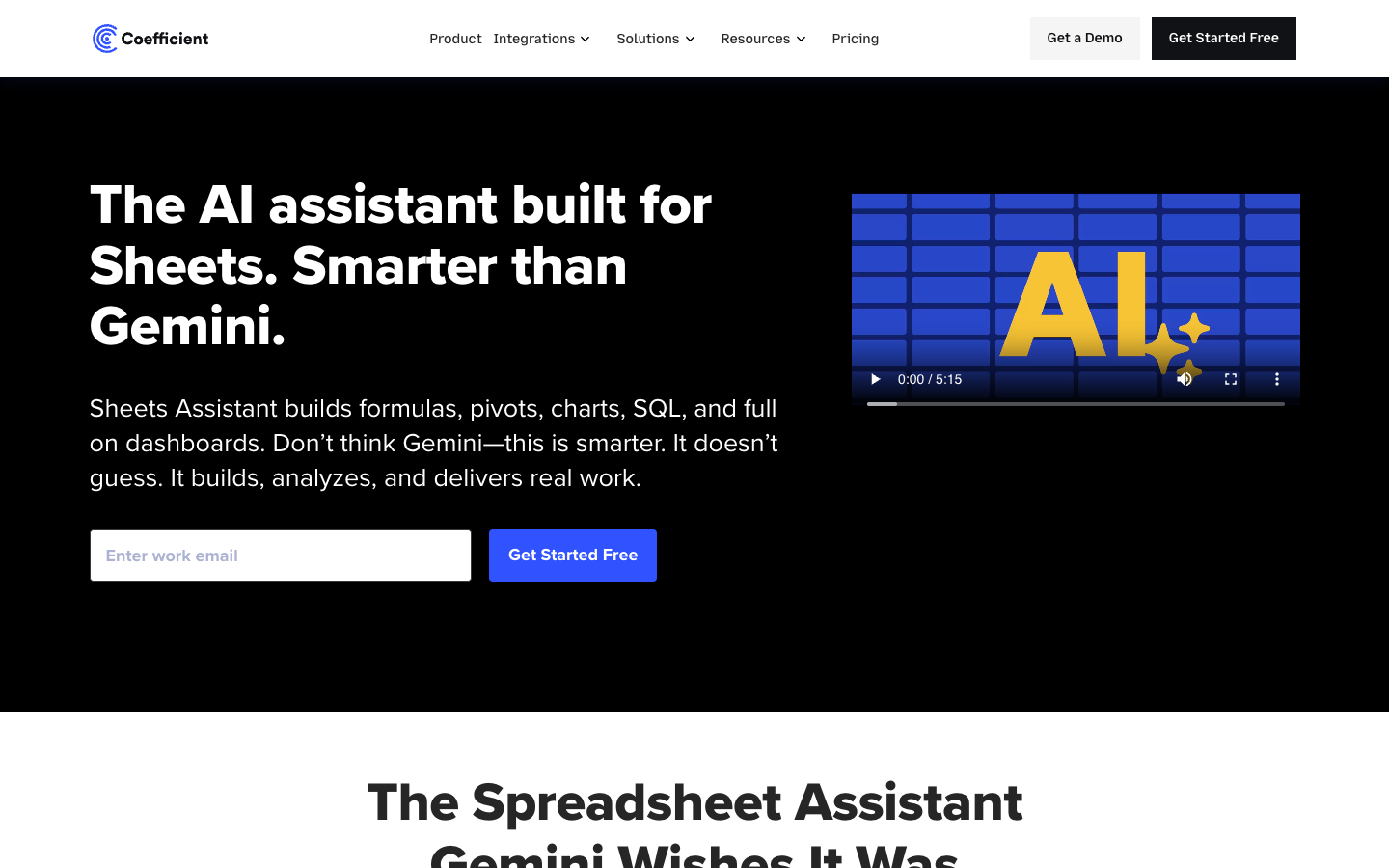
Best connected-data Sheets workflow. Coefficient’s real differentiation isn’t the AI: it’s the 100+ connectors, two-way sync, alerts, snapshots, and cloud pivots feeding Google Sheets. The assistant becomes more compelling because it sits next to live business data, not static rows pasted in last week. Practical Sheets AI help. Write, fix, and explain formulas; create charts and pivots; build dashboards. Enough if you want practical Sheets help rather than a full autonomous agent, and it pairs naturally with the connected data. AI functions bundled into plan packaging. On Sheet AI functions and OpenAI API-call allowances come with each pricing tier (free tier includes 10K lifetime calls). Useful if you’re already buying Coefficient for the connectors.What We Don’t Like
AI Sheets Assistant is Google Sheets only. Coefficient has an Excel add-in for data workflows, but the AI Sheets Assistant doesn’t run in Excel - it’s a Google Sheets product. If you’re an Excel team looking for a Coefficient AI assistant, there isn’t one. Don’t assume parity. Not an autonomous workbook agent. Coefficient is better at connected data and Sheets assistance than agentic editing. Expect a helpful chat next to your data, not ChatGPT-style workbook reasoning. The product value is the connectors.Pricing
| Plan | Price | What’s Included |
|---|---|---|
| Free | $0/mo | 3 sources, 5K row imports, 50 refreshes/mo, AI functions, 10K lifetime OpenAI calls |
| Starter | $49/mo | Daily refresh, snapshots, SQL/chart/pivot builders, 100 alerts/mo, 50K OpenAI calls |
| Pro | $99/user/mo | 6 sources, unlimited rows, hourly refresh, 300 alerts, 100K OpenAI calls, up to 10 users |
| Enterprise | Custom | Unlimited refresh and alerts, admin controls, SSO, dedicated support |
Platform Availability
Google Sheets (Web). Separate Coefficient data add-in for Excel (Web, Windows, Mac, Office 2021) supports imports and refreshes, not the AI Sheets Assistant.Who It’s For (and Who Should Skip It)
Use this if you work in RevOps, sales ops, marketing ops, or FP&A reporting on Google Sheets. Skip it if you need an Excel AI assistant (Claude for Excel or Copilot) or a general autonomous workbook agent (ChatGPT).Selection Guide
- If you mix Excel and Google Sheets -> ChatGPT for Excel and Google Sheets
- If your company already runs on Microsoft 365 -> Microsoft 365 Copilot in Excel
- If you live in Google Sheets and Workspace -> Gemini in Google Sheets
- If you review complex Excel finance models -> Claude for Excel
- If you need thousands of prompt-per-row operations -> GPT for Work
- If you build DCF, LBO, or valuation models -> Shortcut
- If your Sheets work depends on CRM, ops, or warehouse data -> Coefficient
How We Evaluated
We evaluated 17 AI spreadsheet tools and selected seven for full deep dives. We don’t use affiliate links, accept sponsorships, or take payment from tool makers. Recommendations are based on testing the products inside Excel and Google Sheets, reading official documentation and pricing pages directly, and weighing independent hands-on signal against vendor claims.Selection Criteria
- Workbook fidelity. Can the tool actually read, edit, and produce usable spreadsheets, or does it only describe what it would do?
- Practical breadth. Does it cover the work you actually need (formulas, structure, charts, automation), or just a single feature in isolation?
- Clear lane. Is there a specific situation this tool is genuinely the best choice for? Tools without a clear lane didn’t make the list.
- Current product movement. Active changelog, recent model updates, or documented capability expansion in the past six months.
How We Tested
We compared tools across the dimensions that actually matter: how well each one reads a complex multi-tab workbook, how it handles formulas and references without breaking them, how polished and reviewable the output is, how it performs on bulk row tasks, and how clearly the pricing maps to real usage. We also paid attention to friction: install steps, plan eligibility, model choice, and where the assistant quietly stops being useful.Alternatives to Consider
Other Tools Worth Considering
- Numerous.ai - simple in-cell
=AI/=NUM.AIfunctions across Excel and Sheets. - AISheeter - Google Sheets agent with BYOK and self-correction.
- SheetXAI - lightweight cross-platform automation with credit pricing.
- Rows - AI-native spreadsheet replacement, not an add-in.
- Sourcetable - AI spreadsheet and data-analysis platform with Python and SQL.
- Quadratic - code-first spreadsheet if you live in Python, SQL, or JavaScript.
- Equals - GTM analytics spreadsheet for revenue teams.
- Ajelix - formula, VBA, and BI helper toolkit.
- Formula Bot - quick formula and chart help.
- Griddy - emerging Excel and Sheets assistant.
Adjacent Categories
- General AI chatbots with file analysis (ChatGPT, Claude, Gemini). They analyze uploaded spreadsheets but don’t edit live in your workbook. Use this for one-off analysis without installing anything.
- AI-native spreadsheet replacements (Rows, Sourcetable, Quadratic). New spreadsheet workspaces, not assistants on Excel or Sheets. Choose this when the spreadsheet itself can move.
- BI and AI data analyst platforms (Power BI Copilot, Tableau Einstein, Julius). The buying decision is analytics and dashboards, not workbook editing.
What You Need to Know Before Using AI Spreadsheet Tools
Spreadsheets are where companies keep some of their most sensitive data: financial models, customer lists, headcount plans, deal pipelines. Three things matter before you give an AI agent access.Data Confidentiality
When an AI assistant reads or edits your workbook, the data in those cells usually leaves your environment to be processed. Plans handle this differently: Microsoft 365 Copilot and ChatGPT Business or Enterprise tiers offer training-data exclusion and stronger contractual protections; consumer and free-tier tools often don’t. Before connecting anything sensitive, check your plan’s retention policy and whether IT has approved that path.Prompt Injection From Spreadsheet Content
AI agents that read spreadsheets can be tricked by instructions hidden in cells of an external workbook. Anthropic explicitly flags this risk for Claude for Excel: an attacker can plant text in a downloaded file that tries to redirect the assistant. The practical rule: don’t let an agent run autonomously on spreadsheets you didn’t create, and review changes before saving when working with outside files.Audit Trail and Change Review
When an AI edits your workbook, you need to know what changed and why. Some tools (like Shortcut) surface changed cells and let you revert; others overwrite quietly. Save a clean copy before running an agent on any financial or shared workbook, and prefer tools with diffs or change logs. Being right on 19 cells and wrong on the 20th is still a problem if you can’t find which one.Frequently Asked Questions
What are AI spreadsheet agents?
What are AI spreadsheet agents?
Tools that work directly inside Excel or Google Sheets to build, edit, and automate workbook tasks using natural language. The better ones plan changes, edit cells, build charts, and run prompts across thousands of rows.
Will these tools work with my existing complex Excel models?
Will these tools work with my existing complex Excel models?
Mostly yes, but with caveats. Claude for Excel and Copilot are strongest at reading multi-tab models and preserving formula behavior. ChatGPT works too but can be less polished. Shortcut is purpose-built to preserve live formulas. Always save a clean copy before letting any agent edit a model that matters.
What happens to the work the assistant did if I cancel or switch tools?
What happens to the work the assistant did if I cancel or switch tools?
The workbook stays with you - everything the agent created or edited is just normal Excel or Sheets content. What you lose is chat history, custom skills, saved prompts, and connector configs. Export important conversations before canceling if lock-in worries you.
Can I use these tools if my company blocks third-party add-ins?
Can I use these tools if my company blocks third-party add-ins?
In strict environments, the only AI spreadsheet tools likely to clear IT review are Copilot (if you’re on Microsoft 365), Gemini (if you’re on Google Workspace), and Claude for Excel or ChatGPT through approved enterprise plans. Third-party add-ins like GPT for Work or Coefficient usually need separate security review.
What's the difference between an AI spreadsheet agent and using ChatGPT to analyze a file I upload?
What's the difference between an AI spreadsheet agent and using ChatGPT to analyze a file I upload?
An agent runs inside the spreadsheet and edits cells in your live workbook. Uploading a file to chat gives you analysis or a new file but doesn’t edit live. Agents are for ongoing work; uploads are better for one-off questions.